Authentication and authorization
Secure the SOARCA API with Microsoft Entra ID, authentik or another OIDC provider, and static API keys
Authentication is disabled by default in SOARCA. With the default configuration, anyone who can reach SOARCA over the network can submit and execute playbooks. Because playbooks can reconfigure the systems SOARCA is connected to, enable authentication for every deployment that is reachable by more than a single trusted machine.
With authentication enabled, every API request needs an Authorization: Bearer <credential> header. SOARCA accepts three kinds of credentials, side by side:
| Credential | Issued by | Typical caller |
|---|
| Entra ID access token | Microsoft Entra ID | Analysts with a Microsoft account, Azure workloads, integrations registered in Entra |
| OIDC access token | authentik or another OpenID Connect provider | Analysts and service accounts managed in authentik |
| API key | SOARCA itself | Systems that cannot request an OAuth token, such as webhook sources |
You can enable any combination. SOARCA looks at each credential and hands it to the matching provider: a JWT by its issuer (iss claim), an API key by its soarca_ prefix. Tokens from an issuer SOARCA isn’t configured for are rejected.
Permissions
SOARCA grants access through four permissions. Each identity provider maps its own roles or groups onto them; see the provider pages below for the exact names.
| Permission | Allows |
|---|
playbook:read | Reading playbooks, execution reports and status |
playbook:write | Creating, updating and deleting playbooks |
playbook:execute | Triggering playbooks and answering manual steps |
soarca:admin | Everything, including key management |
Every role that grants playbook:write or playbook:execute also grants playbook:read.
| Route | Required permission |
|---|
GET /playbook/, GET /playbook/meta/, GET /playbook/:id | playbook:read |
POST /playbook/, PUT /playbook/:id, DELETE /playbook/:id | playbook:write |
GET /reporter/, GET /reporter/:id, GET /status/, GET /status/ping | playbook:read |
POST /trigger/playbook, POST /trigger/playbook/:id | playbook:execute |
GET /manual/, GET /manual/:exec_id/:step_id, POST /manual/continue | playbook:execute |
/keymanagement/* | soarca:admin |
A request without a valid credential gets 401 Unauthorized. A valid credential that lacks the permission gets 403 Forbidden. Both use SOARCA’s usual error format:
{
  "status": "403",
  "message": "forbidden: requires playbook:execute",
  "original-call": "POST /trigger/playbook",
  "downstream-call": ""
}
Setting up a provider
Environment variables
Authentication is turned on with AUTH_ENABLED: true. SOARCA then refuses to start unless at least one provider is fully configured.
General
| Variable | Default | Description |
|---|
AUTH_ENABLED | false | Require a valid credential on every API request. |
OpenID Connect (authentik)
| Variable | Default | Description |
|---|
OIDC_ISSUER | | Issuer URL, exactly as it appears in the tokens’ iss claim, including any trailing slash. |
OIDC_CLIENT_ID | | Client ID of the SOARCA provider. Tokens must carry it as their audience. |
OIDC_SKIP_TLS_VERIFY | false | Skip certificate checks towards the provider. Only for test setups with self-signed certificates. |
AUTH_GROUP | soarca_admin | Members of this group get every permission. |
OIDC_ISSUER and OIDC_CLIENT_ID must be set together.
Microsoft Entra ID
| Variable | Default | Description |
|---|
AUTH_ENTRA_TENANT_IDS | | Comma-separated tenant IDs whose tokens SOARCA accepts. |
AUTH_ENTRA_API_CLIENT_ID | | Application (client) ID of the SOARCA API app registration. |
AUTH_ENTRA_API_APP_ID_URI | | Application ID URI of that registration, e.g. api://soarca. Optional. |
AUTH_ENTRA_ALLOWED_CLIENT_IDS | | Comma-separated client IDs of the applications allowed to call SOARCA. Empty allows every application in an allowed tenant. |
AUTH_ENTRA_REQUIRED_USER_SCOPE | access_as_user | Delegated scope that user tokens must carry. |
AUTH_ENTRA_ACCEPT_V1 | false | Also accept v1 tokens (issuer https://sts.windows.net/<tenant>/). |
AUTH_ENTRA_AUTHORITY | https://login.microsoftonline.com | Login host. Change it only for national clouds, e.g. https://login.microsoftonline.us. |
AUTH_ENTRA_TENANT_IDS and AUTH_ENTRA_API_CLIENT_ID must be set together.
API keys
| Variable | Default | Description |
|---|
AUTH_API_KEYS_FILE | | Path to a JSON file with hashed API keys. Empty disables API keys. |
Example
AUTH_ENABLED: true

# authentik
OIDC_ISSUER: "https://authentik.example.com/application/o/soarca/"
OIDC_CLIENT_ID: "soarca"
AUTH_GROUP: "soarca_admin"

# Entra ID
AUTH_ENTRA_TENANT_IDS: "11111111-1111-1111-1111-111111111111"
AUTH_ENTRA_API_CLIENT_ID: "aaaaaaaa-0000-0000-0000-000000000001"
AUTH_ENTRA_API_APP_ID_URI: "api://soarca"

# API keys
AUTH_API_KEYS_FILE: "/etc/soarca/api-keys.json"
Checking a token
Access tokens are signed, not encrypted, so you can read their claims. This is the quickest way to find out why SOARCA rejects one:
echo "$TOKEN" | cut -d. -f2 | tr '_-' '/+' | base64 -d 2>/dev/null | jq
Compare iss with the issuer SOARCA is configured for, aud with the client ID, and roles (Entra ID) or groups (authentik) with the role tables on the provider pages.
Then call SOARCA with it:
curl -H "Authorization: Bearer $TOKEN" http://localhost:8080/playbook/
Common problems
| Response | Cause |
|---|
401 for every request | The token’s issuer isn’t configured, the token expired, or it was issued for another audience. Decode the token and compare iss and aud. |
401 with an Entra token whose aud is https://graph.microsoft.com | The caller requested a Microsoft Graph token. Request a token for the SOARCA API instead; see Entra ID. |
403 forbidden: requires … | The credential is valid, but none of its roles or groups grants that permission. |
SOARCA doesn’t start: AUTH_ENABLED=true requires … | Authentication is enabled without a complete provider configuration. |
1 - Microsoft Entra ID
Let users and applications from Microsoft Entra ID call SOARCA
SOARCA accepts access tokens that Entra ID issues for a dedicated SOARCA API app registration. Permissions come from app roles on that registration, so you decide in Entra ID who may read, write or execute playbooks.
You need an account that can create app registrations and grant admin consent, for example Application Administrator. Note your tenant ID from the Entra admin center overview page.
Entra components: users and applications
@startuml
skinparam componentStyle rectangle

component "**SOARCA API** (app registration)\n\nApplication ID URI: api://soarca\nScope: access_as_user\nApp roles: Playbook.Read, Playbook.Write,\nPlaybook.Execute, SOARCA.Admin" as api

component "**A client that signs users in**\n(authorization code flow)" as client
component "**An integration or managed identity**\n(client credentials flow)" as integration

client -> api : delegated scope\n+ the user's assigned app roles
api <-- integration : application permission\n(app role assigned to the application)
@enduml
One registration represents SOARCA. Everything that calls SOARCA gets its own registration, or is a managed identity. Users and groups receive app roles through assignment; applications receive them as application permissions. Either way the roles end up in the token’s roles claim, which SOARCA maps to permissions:
| App role value | SOARCA permissions |
|---|
Playbook.Read | playbook:read |
Playbook.Write | playbook:read, playbook:write |
Playbook.Execute | playbook:read, playbook:execute |
SOARCA.Admin | all permissions |
The values are case-sensitive and must match exactly.
1. Register the SOARCA API
- In the Entra admin center, go to Identity → Applications → App registrations → New registration. Name it
SOARCA API, choose Accounts in this organizational directory only, leave the redirect URI empty and register. - Copy the Application (client) ID. This is
AUTH_ENTRA_API_CLIENT_ID. - Expose an API → Application ID URI → Add. Use
api://soarca, or accept the suggested api://<client-id> if your tenant doesn’t allow custom URIs. This is AUTH_ENTRA_API_APP_ID_URI. - Expose an API → Add a scope: name
access_as_user, who can consent Admins only, state Enabled. - App roles → Create app role, four times, each with allowed member types Both (Users/Groups + Applications) and the values from the table above.
- Manifest: set
"requestedAccessTokenVersion": 2 in the api section and save. Without it, Entra ID issues v1 tokens, which SOARCA rejects unless AUTH_ENTRA_ACCEPT_V1 is true. - Token configuration → Add optional claim → token type Access →
idtyp. This tells SOARCA reliably whether a token belongs to a user or an application. - Enterprise applications → SOARCA API → Properties: set Assignment required? to Yes. Now only users, groups and applications that hold an app role can get a token for SOARCA.
API_APP_ID=$(az ad app create --display-name "SOARCA API" \
  --sign-in-audience AzureADMyOrg --query appId -o tsv)
API_OBJECT_ID=$(az ad app show --id $API_APP_ID --query id -o tsv)
az ad app update --id $API_APP_ID --identifier-uris api://soarca

cat > roles.json <<EOF
[
 {"id":"$(uuidgen)","value":"Playbook.Read","displayName":"Playbook reader","description":"Read playbooks","allowedMemberTypes":["User","Application"],"isEnabled":true},
 {"id":"$(uuidgen)","value":"Playbook.Write","displayName":"Playbook author","description":"Create and change playbooks","allowedMemberTypes":["User","Application"],"isEnabled":true},
 {"id":"$(uuidgen)","value":"Playbook.Execute","displayName":"Playbook executor","description":"Trigger playbooks","allowedMemberTypes":["User","Application"],"isEnabled":true},
 {"id":"$(uuidgen)","value":"SOARCA.Admin","displayName":"SOARCA admin","description":"Full access","allowedMemberTypes":["User","Application"],"isEnabled":true}
]
EOF
az ad app update --id $API_APP_ID --app-roles @roles.json

# Scope, v2 tokens and the idtyp claim in one call: PATCH replaces the whole "api" object.
az rest --method PATCH \
  --uri "https://graph.microsoft.com/v1.0/applications/$API_OBJECT_ID" \
  --headers Content-Type=application/json \
  --body "{
    \"api\": {
      \"requestedAccessTokenVersion\": 2,
      \"oauth2PermissionScopes\": [{
        \"id\": \"$(uuidgen)\", \"value\": \"access_as_user\", \"type\": \"Admin\",
        \"adminConsentDisplayName\": \"Access SOARCA as the signed-in user\",
        \"adminConsentDescription\": \"Lets an application call SOARCA for the signed-in user\",
        \"isEnabled\": true }]
    },
    \"optionalClaims\": { \"accessToken\": [ { \"name\": \"idtyp\" } ] }
  }"

API_SP_ID=$(az ad sp create --id $API_APP_ID --query id -o tsv)
az ad sp update --id $API_SP_ID --set appRoleAssignmentRequired=true
2. Give users access
Enterprise applications → SOARCA API → Users and groups → Add user/group. Pick a user or group and one of the app roles.
Note
Assigning groups to app roles requires Entra ID P1 or P2. Only direct members of an assigned group receive the role; nested groups are not expanded.A user token for SOARCA is requested with the scope api://soarca/access_as_user by any client the user signs in to. That client needs the delegated permission SOARCA API → access_as_user, with admin consent.
To test as a user without building a client, pre-authorize the Azure CLI: Expose an API → Add a client application → client ID 04b07795-8ddb-461a-bbee-02f9e1bf7b46 with the access_as_user scope. Then:
az login --tenant <tenant-id>
TOKEN=$(az account get-access-token --scope api://soarca/access_as_user --query accessToken -o tsv)
curl -H "Authorization: Bearer $TOKEN" http://localhost:8080/playbook/
3. Give applications access
Create one registration per integration, so you can revoke one without affecting the others and SOARCA’s logs show which integration did what.
- App registrations → New registration, e.g.
SOARCA client - Terminal, single tenant, no redirect URI. - Certificates & secrets: upload a certificate (preferred) or create a client secret. For a secret, copy the Value column, not the Secret ID.
- API permissions → Add a permission → My APIs → SOARCA API → Application permissions. Select only the roles the integration needs, e.g.
Playbook.Execute. - Grant admin consent. The status column must show a green check.
The integration requests a token with the client credentials flow. The scope is always api://soarca/.default:
TOKEN=$(curl -s https://login.microsoftonline.com/$TENANT_ID/oauth2/v2.0/token \
  -d grant_type=client_credentials \
  -d client_id=$CLIENT_ID \
  --data-urlencode client_secret=$CLIENT_SECRET \
  -d scope=api://soarca/.default | jq -r .access_token)

curl -X POST -H "Authorization: Bearer $TOKEN" -H "Content-Type: application/json" \
  -d @playbook.json http://localhost:8080/trigger/playbook
Tip
Workloads running in Azure can use a managed identity instead of a secret. Assign the app role to the managed identity’s service principal (az rest --method POST --uri "https://graph.microsoft.com/v1.0/servicePrincipals/<SOARCA API SP ID>/appRoleAssignedTo" with its principalId) and request a token for api://soarca/.default inside the workload.To accept only specific applications, list their client IDs in AUTH_ENTRA_ALLOWED_CLIENT_IDS. Include the client that signs users in, or user tokens are rejected too.
AUTH_ENABLED: true
AUTH_ENTRA_TENANT_IDS: "<tenant-id>"
AUTH_ENTRA_API_CLIENT_ID: "<SOARCA API client ID>"
AUTH_ENTRA_API_APP_ID_URI: "api://soarca"
SOARCA downloads the tenant’s signing keys from Entra ID on the first request and caches them, so it needs outbound HTTPS access to login.microsoftonline.com.
Troubleshooting
Decode the token as described in Checking a token.
| Symptom | Cause | Fix |
|---|
iss is https://sts.windows.net/…, ver is 1.0 | v1 tokens | Set requestedAccessTokenVersion to 2 on the SOARCA API registration and request a new token. |
aud is 00000003-0000-0000-c000-000000000000 or https://graph.microsoft.com | A Microsoft Graph token was requested | Use the scope api://soarca/.default (applications) or api://soarca/access_as_user (users). |
No roles claim, SOARCA answers 403 | No app role assigned, or consent missing | Check API permissions for a green check, and Users and groups on the enterprise application. |
AADSTS501051 when requesting a token | Assignment is required and the caller holds no app role | Assign an app role. |
AADSTS500011 | The Application ID URI in the scope is wrong | Use the exact URI from Expose an API. |
AADSTS7000215 | Wrong client secret | Use the secret’s Value, not its ID, and check that it hasn’t expired. |
SOARCA answers 401 for user tokens only | The token lacks the access_as_user scope, or the signing-in client isn’t in AUTH_ENTRA_ALLOWED_CLIENT_IDS | Request api://soarca/access_as_user; check the allowlist. |
| A role change has no effect | Entra ID caches tokens for 60–90 minutes, managed identities up to 24 hours | Request a new token. |
2 - authentik and other OIDC providers
Let users and service accounts from authentik, or another OpenID Connect provider, call SOARCA
SOARCA accepts access tokens from one OpenID Connect provider, found through its discovery document. This page uses authentik, which SOARCA is tested with. Other providers work if their tokens meet the same requirements.
Permissions come from the groups a user or service account belongs to:
| Group | SOARCA permissions |
|---|
soarca_read | playbook:read |
soarca_write | playbook:read, playbook:write |
soarca_execute | playbook:read, playbook:execute |
soarca_admin (or the value of AUTH_GROUP) | all permissions |
Group names are case-sensitive. Existing setups where every user is in soarca_admin keep working unchanged.
1. Create a provider
In authentik, go to Applications → Providers → Create and select OAuth2/OpenID Provider.
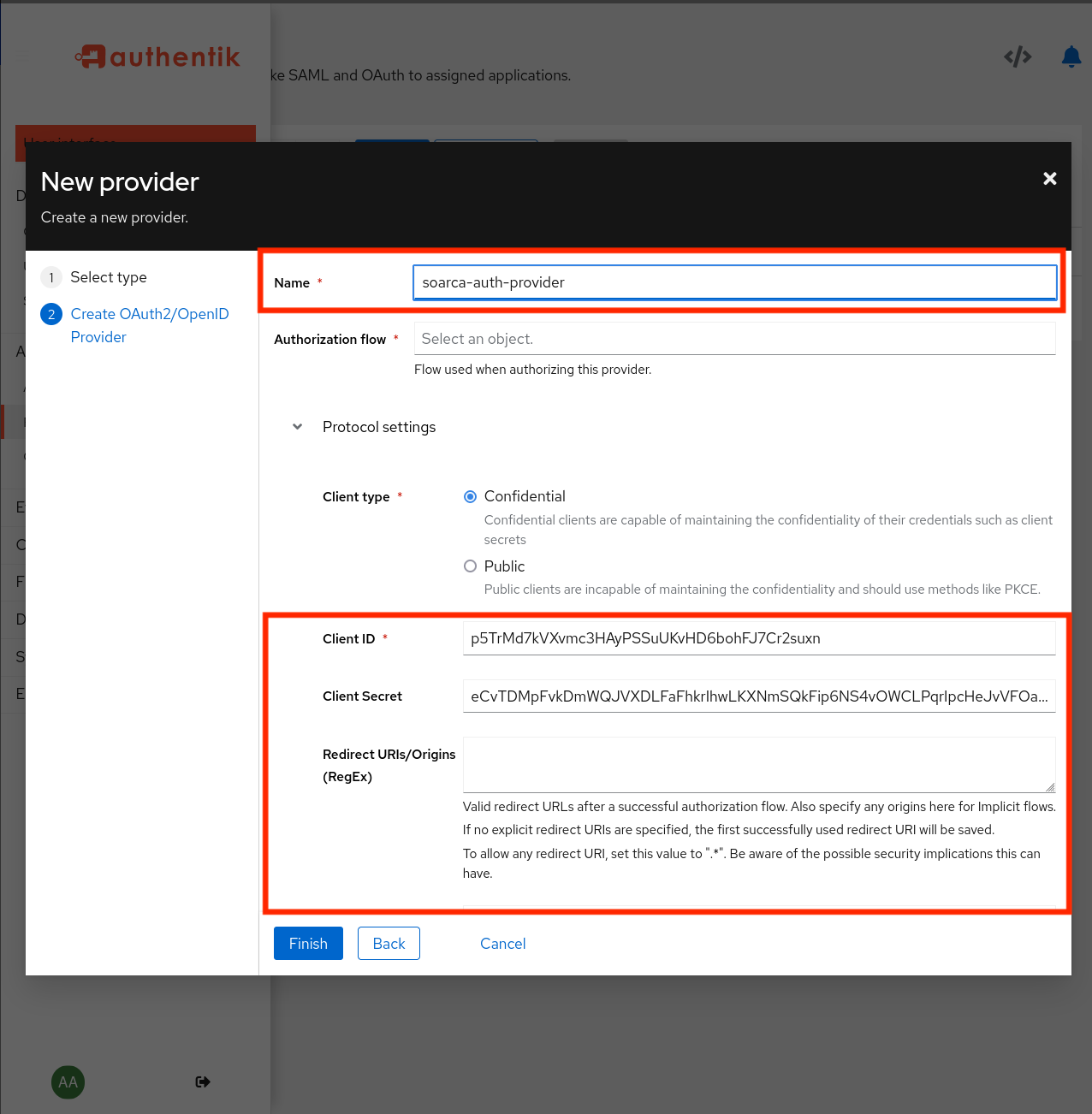
- Name: e.g.
soarca. - Authorization flow: the implicit or explicit consent flow.
- Client type: Confidential.
- Signing key: select a certificate, for example authentik Self-signed Certificate.
Warning
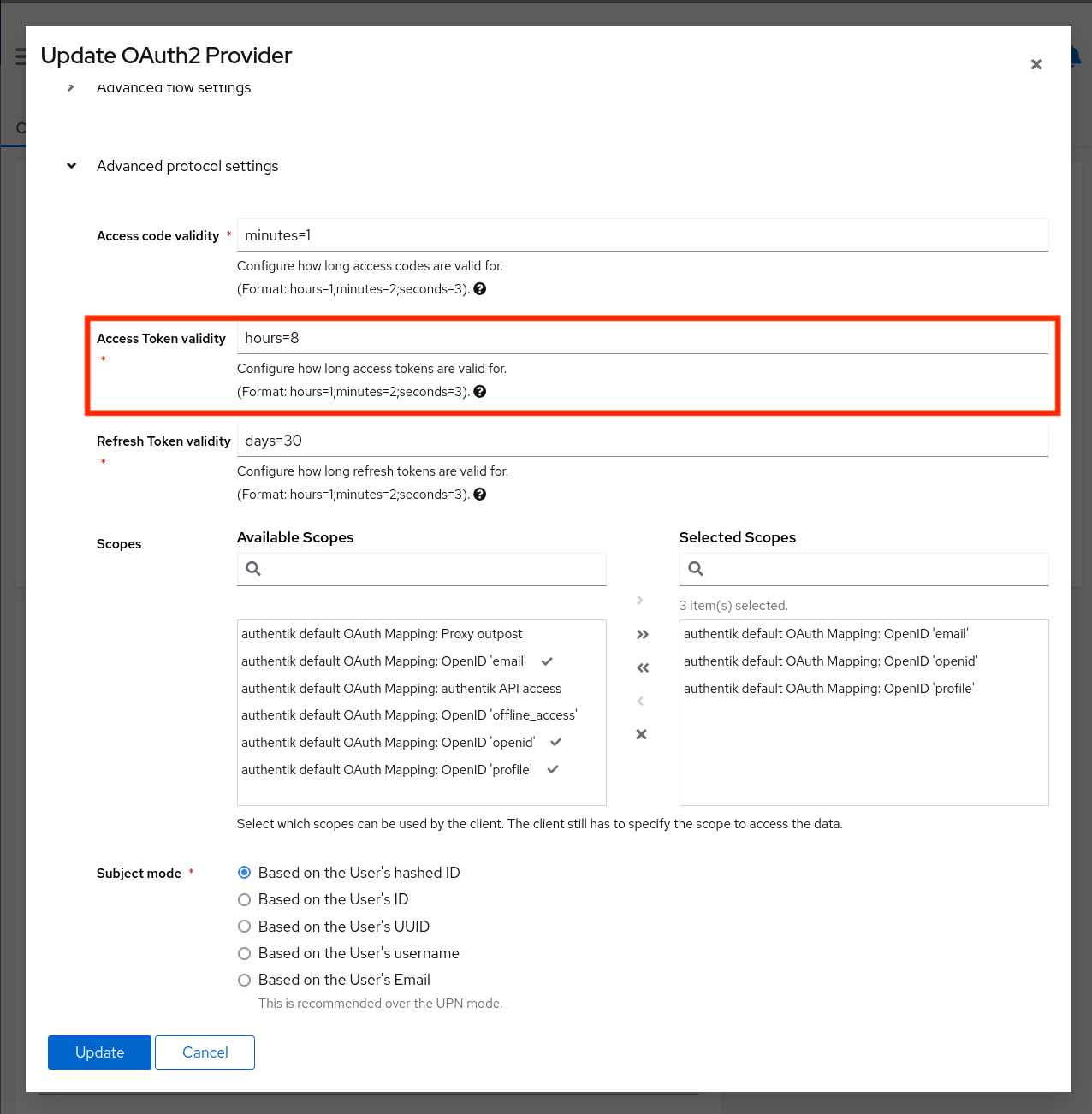
Always select a signing key. Without one, authentik signs tokens with the client secret (HS256), and SOARCA rejects them because it verifies signatures against the provider’s published keys.Under Advanced protocol settings:
- Scopes: keep
openid, email and profile. The profile scope adds the groups claim that SOARCA reads. - Access token validity: SOARCA-GUI uses the access token for the whole session, so set it to the session length you want, for example 8 hours. Integrations that request their own tokens can live with much shorter lifetimes.
To let service accounts request tokens, enable the Client credentials grant type in the provider’s settings.
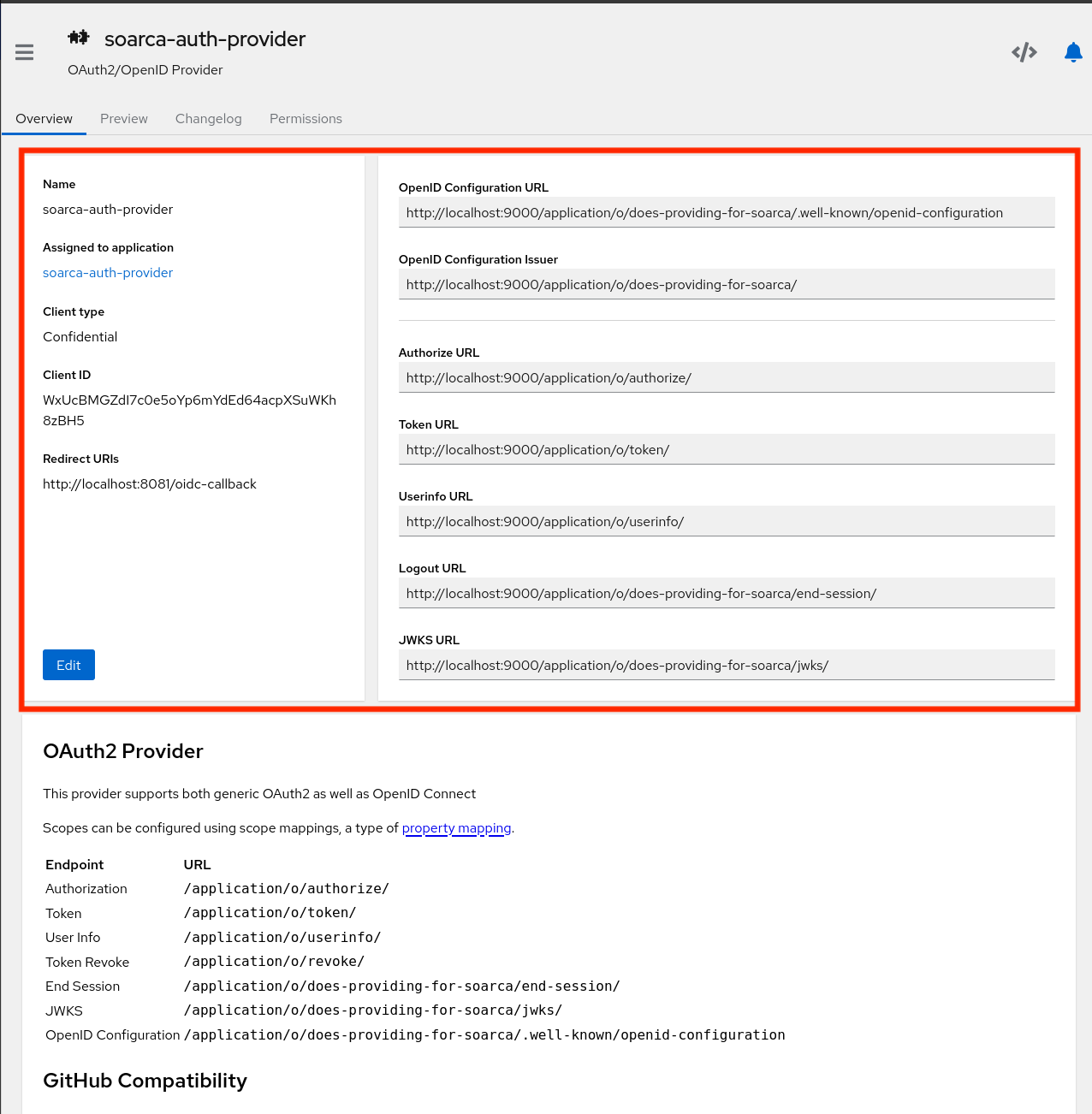
After saving, open the provider. Its overview lists the endpoints. The OpenID Configuration Issuer is the value for OIDC_ISSUER, and the Client ID is the value for OIDC_CLIENT_ID.
2. Create an application
Go to Applications → Applications → Create, give it a name and slug (e.g. soarca), and select the provider from step 1.
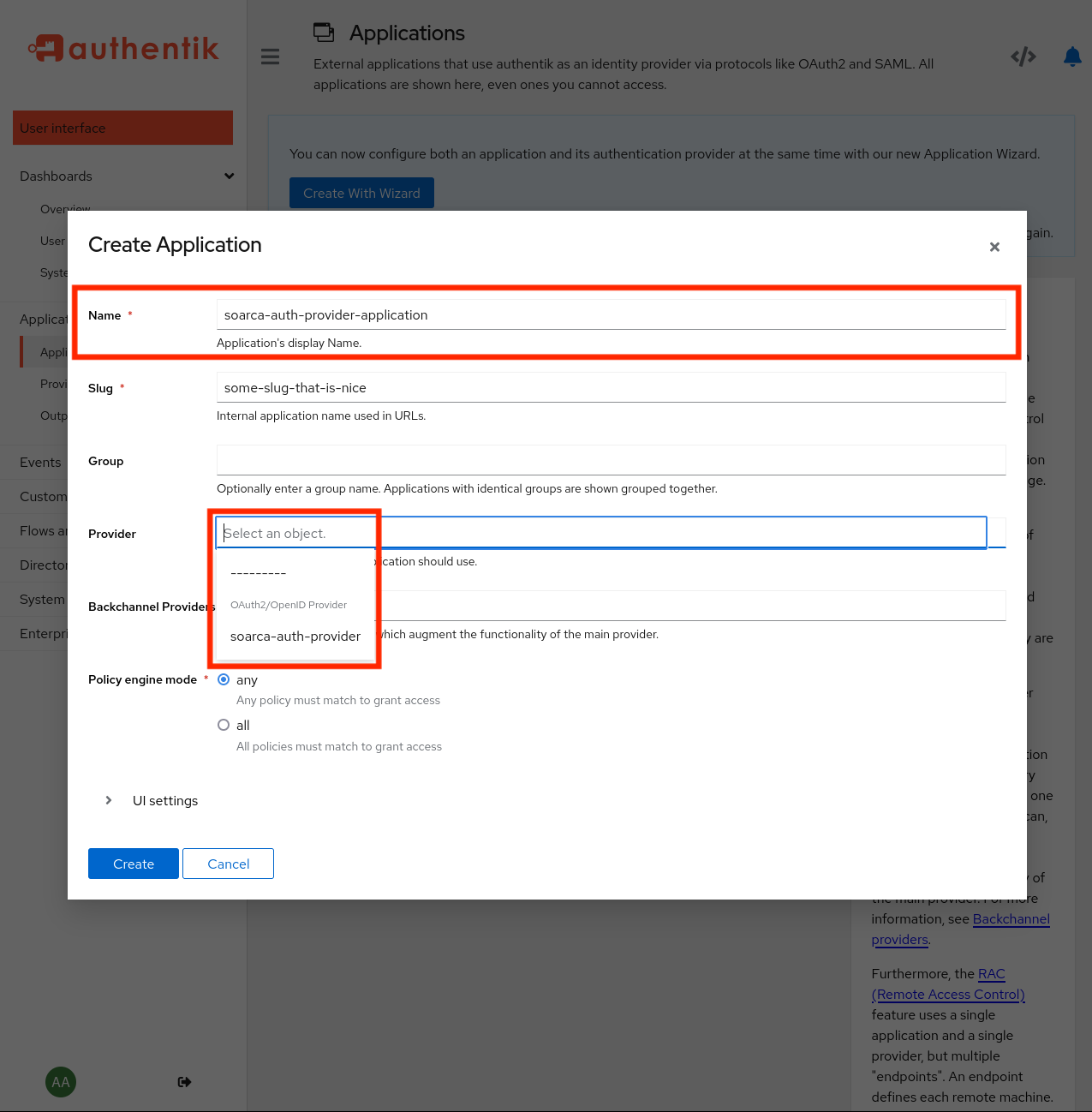
The slug is part of the issuer URL: https://<authentik host>/application/o/<slug>/.
3. Create groups and accounts
Under Directory → Groups, create the groups from the table above that you need.
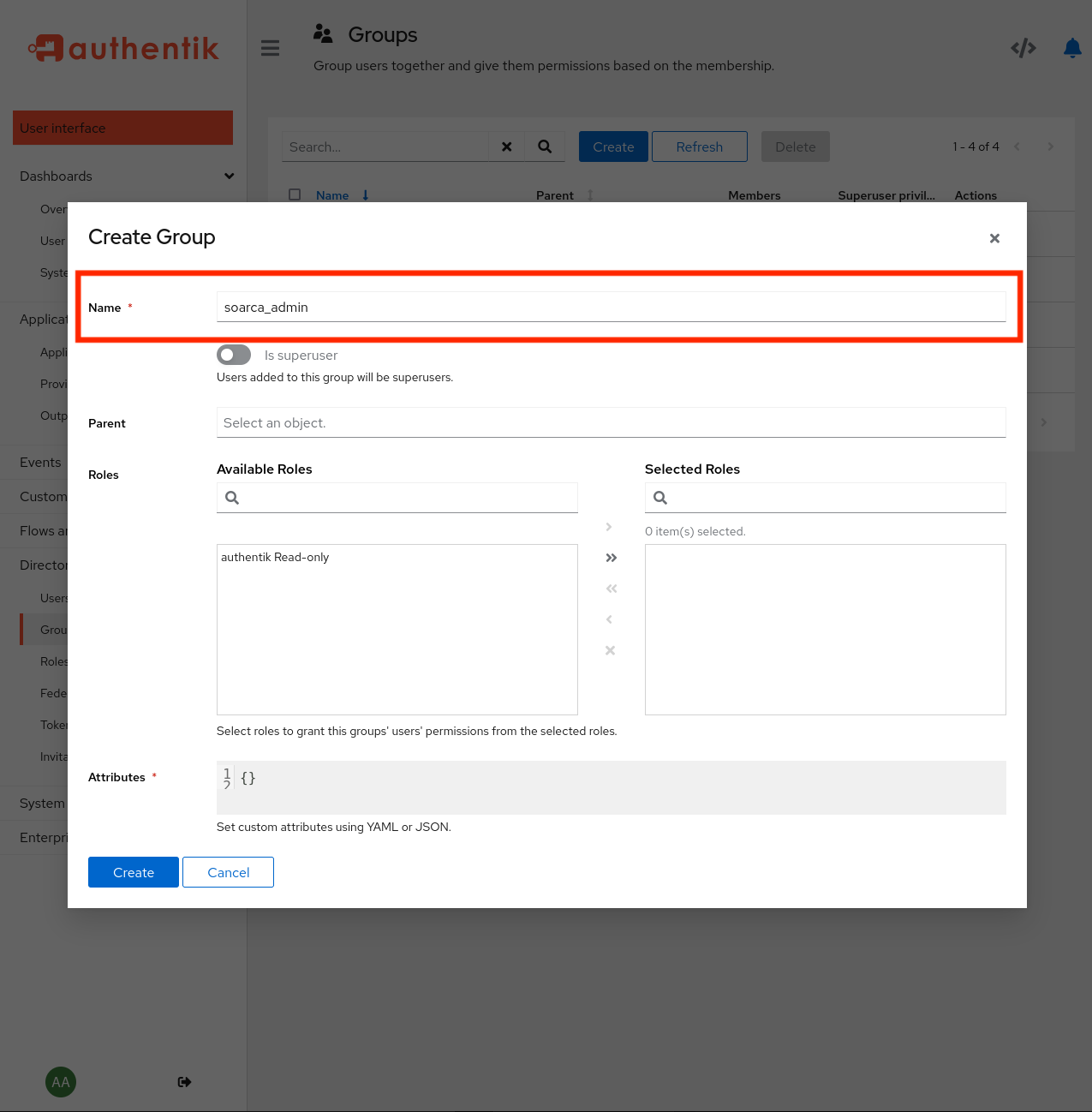
Under Directory → Users, add people as normal users and put them in the right groups.
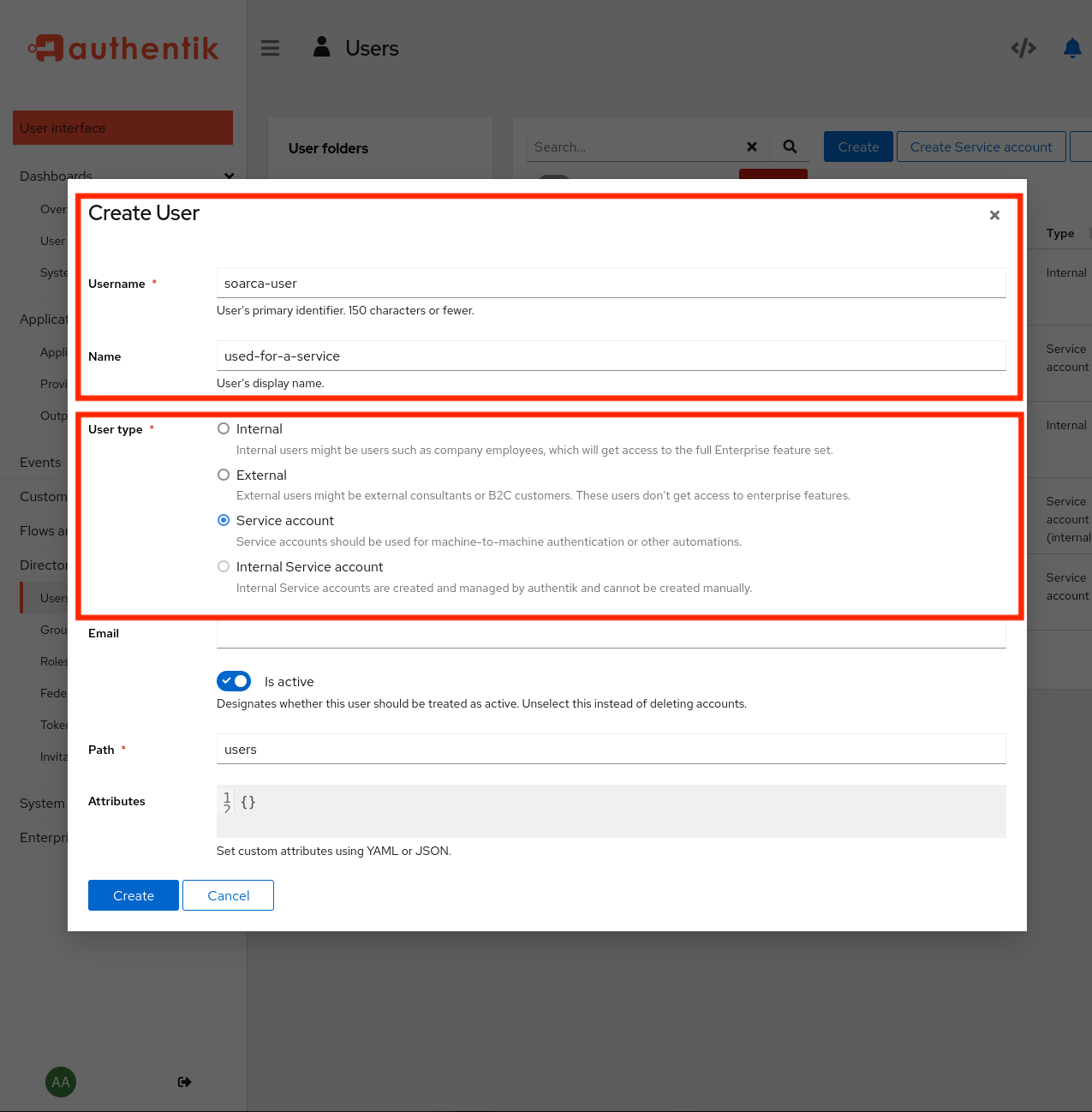
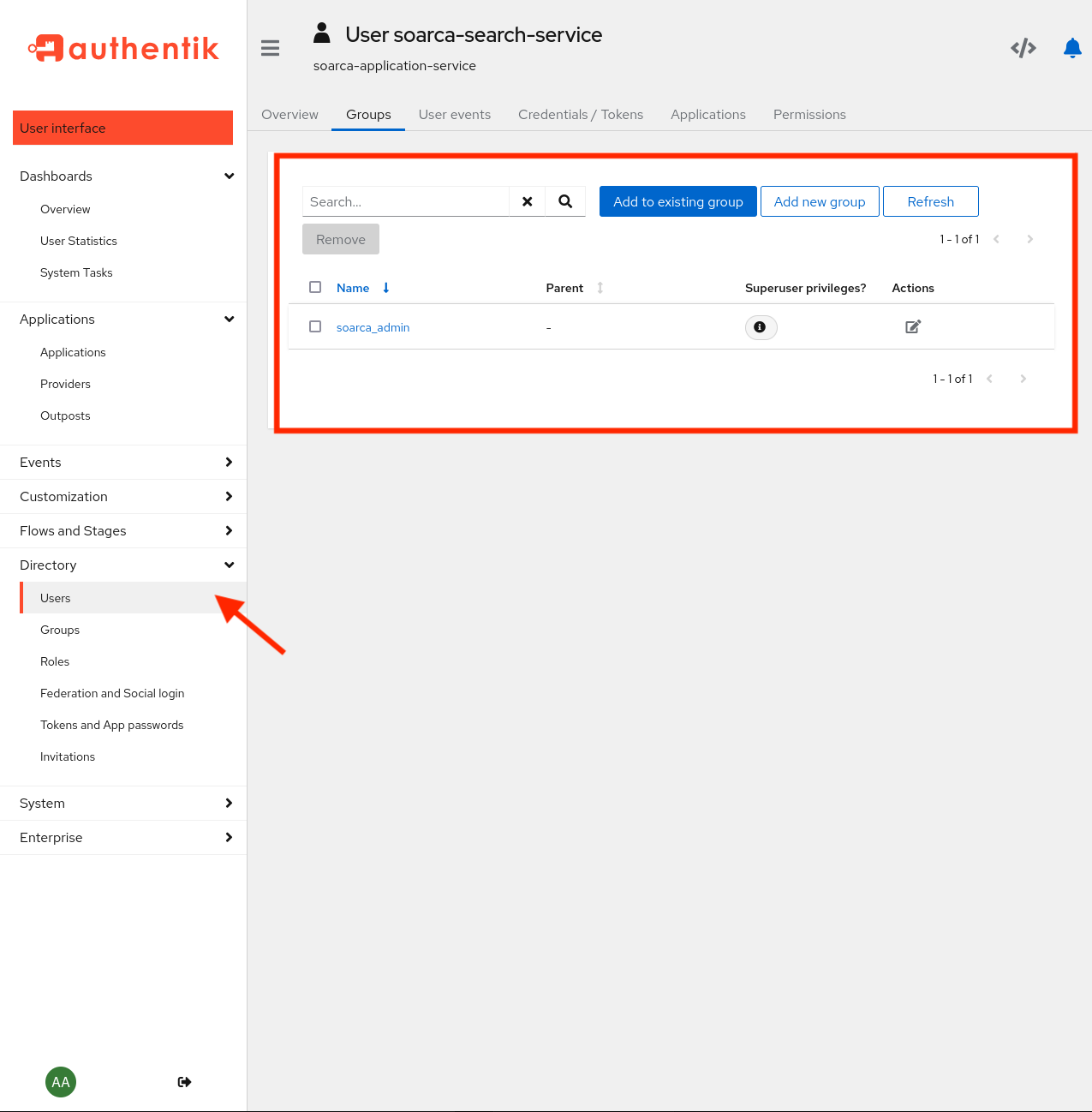
For machine-to-machine access, create a service account for each integration and add it to the group it needs, e.g. soarca_execute. Then create an app password for it under Directory → Tokens and App passwords. The integration uses the account’s username and this app password to request tokens.
If the application has policy bindings that restrict access, bind the SOARCA groups to it as well, otherwise token requests fail.
AUTH_ENABLED: true
OIDC_ISSUER: "https://authentik.example.com/application/o/soarca/"
OIDC_CLIENT_ID: "<client ID of the provider>"
OIDC_SKIP_TLS_VERIFY: false
AUTH_GROUP: "soarca_admin"
export AUTH_ENABLED=true
export OIDC_ISSUER="https://authentik.example.com/application/o/soarca/"
export OIDC_CLIENT_ID="<client ID of the provider>"
export OIDC_SKIP_TLS_VERIFY=false
export AUTH_GROUP="soarca_admin"
OIDC_ISSUER must match the iss claim of the tokens exactly, including the scheme, the port and the trailing slash. authentik builds the issuer from the host name it’s called on, so SOARCA and the clients requesting tokens must use the same URL for authentik.
SOARCA contacts authentik on the first request that needs it, not at startup, so it can start before authentik is reachable. If authentik is down, requests fail with 401 until it’s back.
Warning
OIDC_SKIP_TLS_VERIFY: true disables certificate checks towards authentik. Use it only in test setups with self-signed certificates.5. Get a token
Users get their token by signing in to SOARCA-GUI. For a service account, use the client credentials grant with the account’s username and app password:
TOKEN=$(curl -s https://authentik.example.com/application/o/token/ \
  -d grant_type=client_credentials \
  -d client_id=<client ID> \
  -d username=<service account> \
  --data-urlencode password=<app password> \
  -d "scope=openid profile email" | jq -r .access_token)

curl -X POST -H "Authorization: Bearer $TOKEN" -H "Content-Type: application/json" \
  -d @playbook.json http://localhost:8080/trigger/playbook
Without profile in the scope, the token carries no groups and SOARCA answers 403.
Other OIDC providers
SOARCA works with any provider whose access tokens:
- are JWTs signed with a key published in the provider’s JWKS (the discovery document’s
jwks_uri), not with the client secret; - carry an
iss claim equal to OIDC_ISSUER, with a discovery document at <OIDC_ISSUER>/.well-known/openid-configuration; - carry the client ID from
OIDC_CLIENT_ID in their aud claim; - list the caller’s group names in a
groups claim.
In Keycloak, for example, add a Group Membership mapper named groups (with Full group path off) and an Audience mapper for the SOARCA client to the client’s dedicated scope.
Troubleshooting
Decode the token as described in Checking a token.
| Symptom | Cause | Fix |
|---|
401, and iss differs from OIDC_ISSUER | The token was requested via another host name, scheme or port | Request tokens via the same URL that OIDC_ISSUER uses. Check the trailing slash. |
401, and the token header says "alg": "HS256" | No signing key on the provider | Select a signing key on the provider and request a new token. |
401, and aud differs from OIDC_CLIENT_ID | The token was issued for another provider | Use the client ID of the SOARCA provider. |
403, and the token has no groups claim | profile wasn’t requested, or the scope mapping is missing | Request openid profile email, and check the provider’s scopes. |
403 with groups present | None of the groups grants the permission | Add the account to a group from the table above, or check AUTH_GROUP. |
invalid_grant from authentik | Wrong username or app password, or client credentials aren’t enabled | Check the app password and the provider’s grant types. |
3 - API keys
Static keys for systems that cannot request an OAuth token
Some systems can only send a fixed header, for example a webhook source that triggers a playbook. For those, SOARCA accepts static API keys. Prefer Entra ID or authentik wherever the caller can request a token: tokens expire within hours, while a leaked key stays valid until it’s removed or expires.
SOARCA never stores the keys themselves, only their SHA-256 hash. Every key starts with soarca_, which lets SOARCA recognise it and lets secret scanners find leaked ones.
Create a key
KEY="soarca_$(openssl rand -base64 32 | tr '+/' '-_' | tr -d '=')"
HASH=$(printf '%s' "$KEY" | sha256sum | cut -d' ' -f1)
echo "Key for the caller: $KEY"
echo "Hash for SOARCA:    $HASH"
Give the key to the caller once, through a secure channel, and don’t keep it anywhere else. On macOS, use shasum -a 256 instead of sha256sum.
Register it with SOARCA
Add an entry to the API keys file, a JSON array:
[
  {
    "name": "webhook",
    "sha256": "<HASH>",
    "permissions": ["playbook:execute"],
    "expires": "2027-01-31T00:00:00Z"
  }
]
| Field | Description |
|---|
name | Identifies the caller in logs. Use a different name for every key. |
sha256 | The hex SHA-256 hash of the key. |
permissions | The permissions the key grants. A key grants exactly what’s listed; playbook:execute doesn’t include playbook:read here. |
expires | When the key stops working, in RFC 3339 format. Required. |
Point SOARCA to the file:
AUTH_ENABLED: true
AUTH_API_KEYS_FILE: "/etc/soarca/api-keys.json"
SOARCA reads the file at startup and refuses to start if an entry has no name, an invalid hash or no expiry. Restart SOARCA after changing the file. Keep the file readable only by the user that runs SOARCA.
Use it
curl -X POST -H "Authorization: Bearer $KEY" -H "Content-Type: application/json" \
  -d @playbook.json http://localhost:8080/trigger/playbook
Revoke or rotate a key
Remove the entry from the file, or add a new entry first and remove the old one once the caller has switched, then restart SOARCA.