authentik and other OIDC providers
Categories:
SOARCA accepts access tokens from one OpenID Connect provider, found through its discovery document. This page uses authentik, which SOARCA is tested with. Other providers work if their tokens meet the same requirements.
Permissions come from the groups a user or service account belongs to:
| Group | SOARCA permissions |
|---|---|
soarca_read | playbook:read |
soarca_write | playbook:read, playbook:write |
soarca_execute | playbook:read, playbook:execute |
soarca_admin (or the value of AUTH_GROUP) | all permissions |
Group names are case-sensitive. Existing setups where every user is in soarca_admin keep working unchanged.
1. Create a provider
In authentik, go to Applications → Providers → Create and select OAuth2/OpenID Provider.
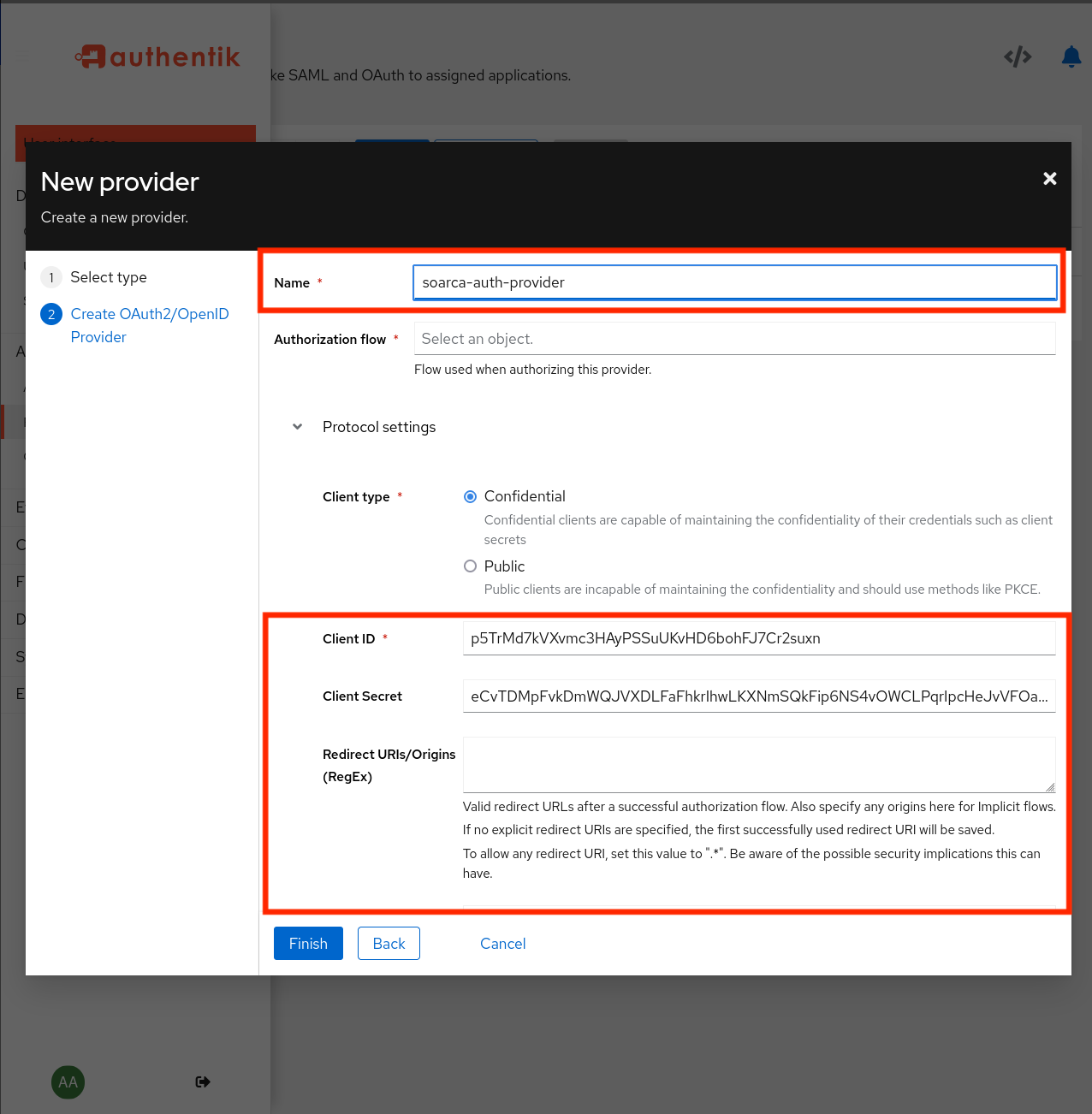
- Name: e.g.
soarca. - Authorization flow: the implicit or explicit consent flow.
- Client type: Confidential.
- Signing key: select a certificate, for example authentik Self-signed Certificate.
Warning
Always select a signing key. Without one, authentik signs tokens with the client secret (HS256), and SOARCA rejects them because it verifies signatures against the provider’s published keys.Under Advanced protocol settings:
- Scopes: keep
openid,emailandprofile. Theprofilescope adds thegroupsclaim that SOARCA reads. - Access token validity: SOARCA-GUI uses the access token for the whole session, so set it to the session length you want, for example 8 hours. Integrations that request their own tokens can live with much shorter lifetimes.
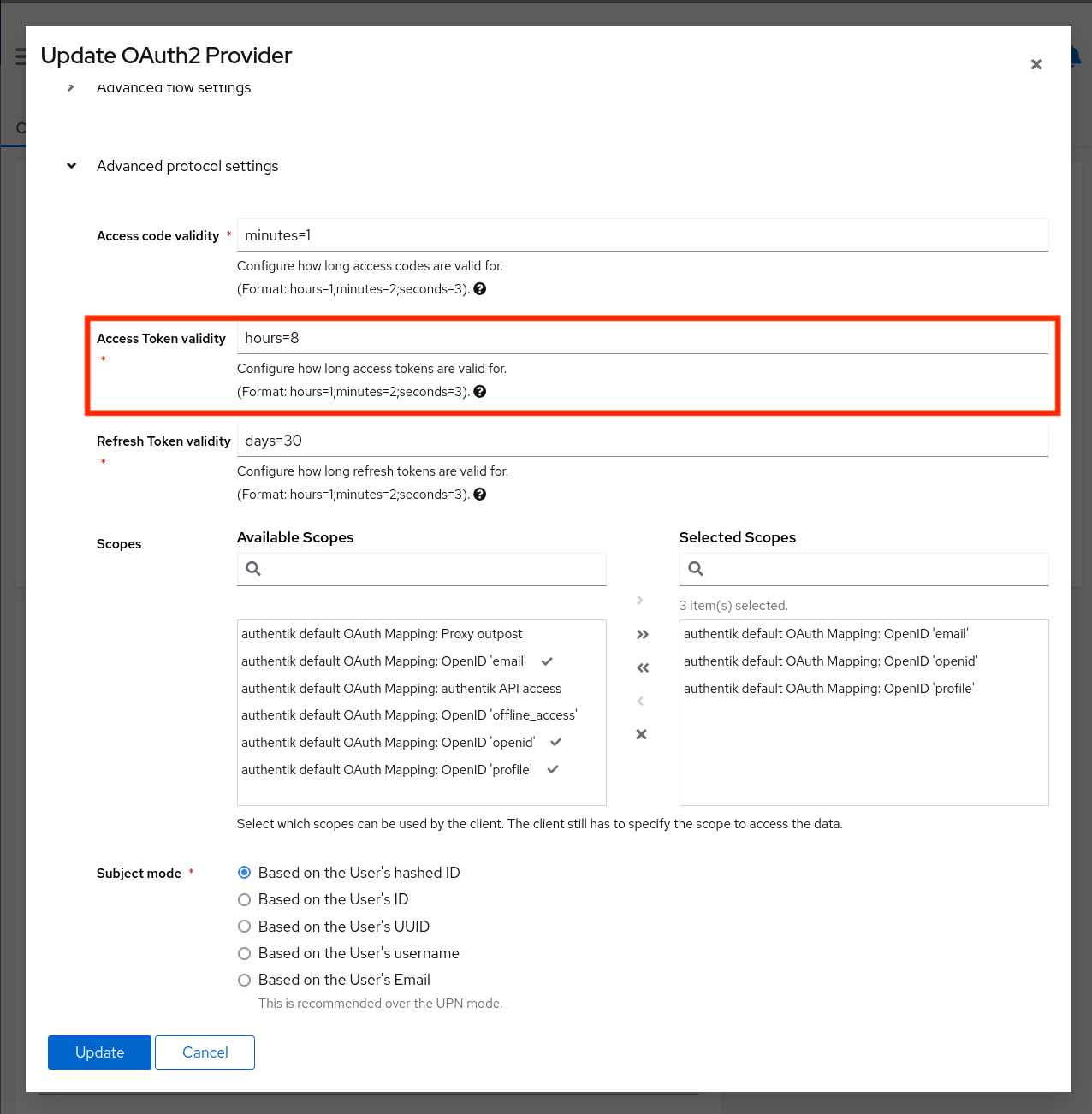
To let service accounts request tokens, enable the Client credentials grant type in the provider’s settings.
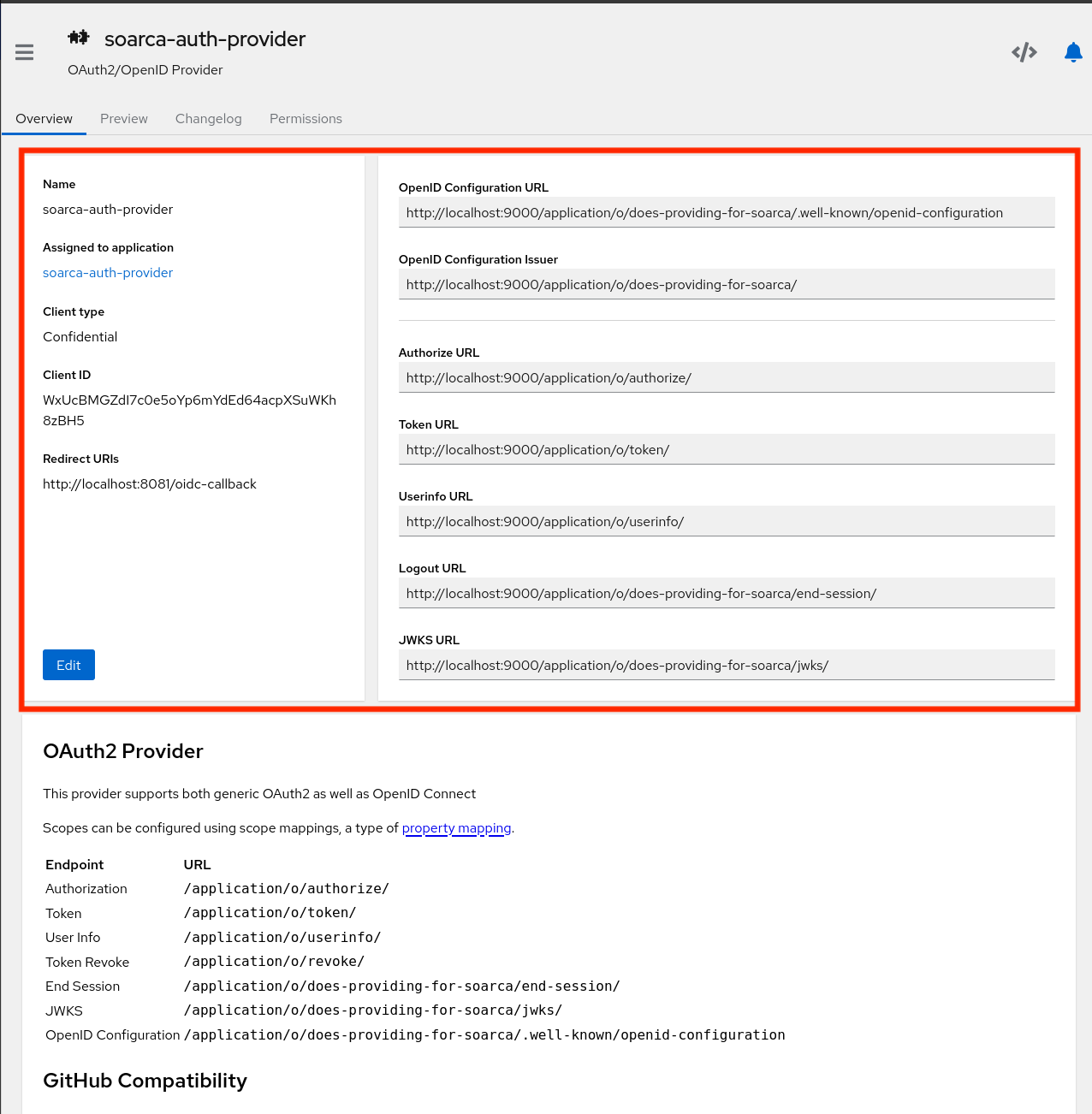
After saving, open the provider. Its overview lists the endpoints. The OpenID Configuration Issuer is the value for OIDC_ISSUER, and the Client ID is the value for OIDC_CLIENT_ID.
2. Create an application
Go to Applications → Applications → Create, give it a name and slug (e.g. soarca), and select the provider from step 1.
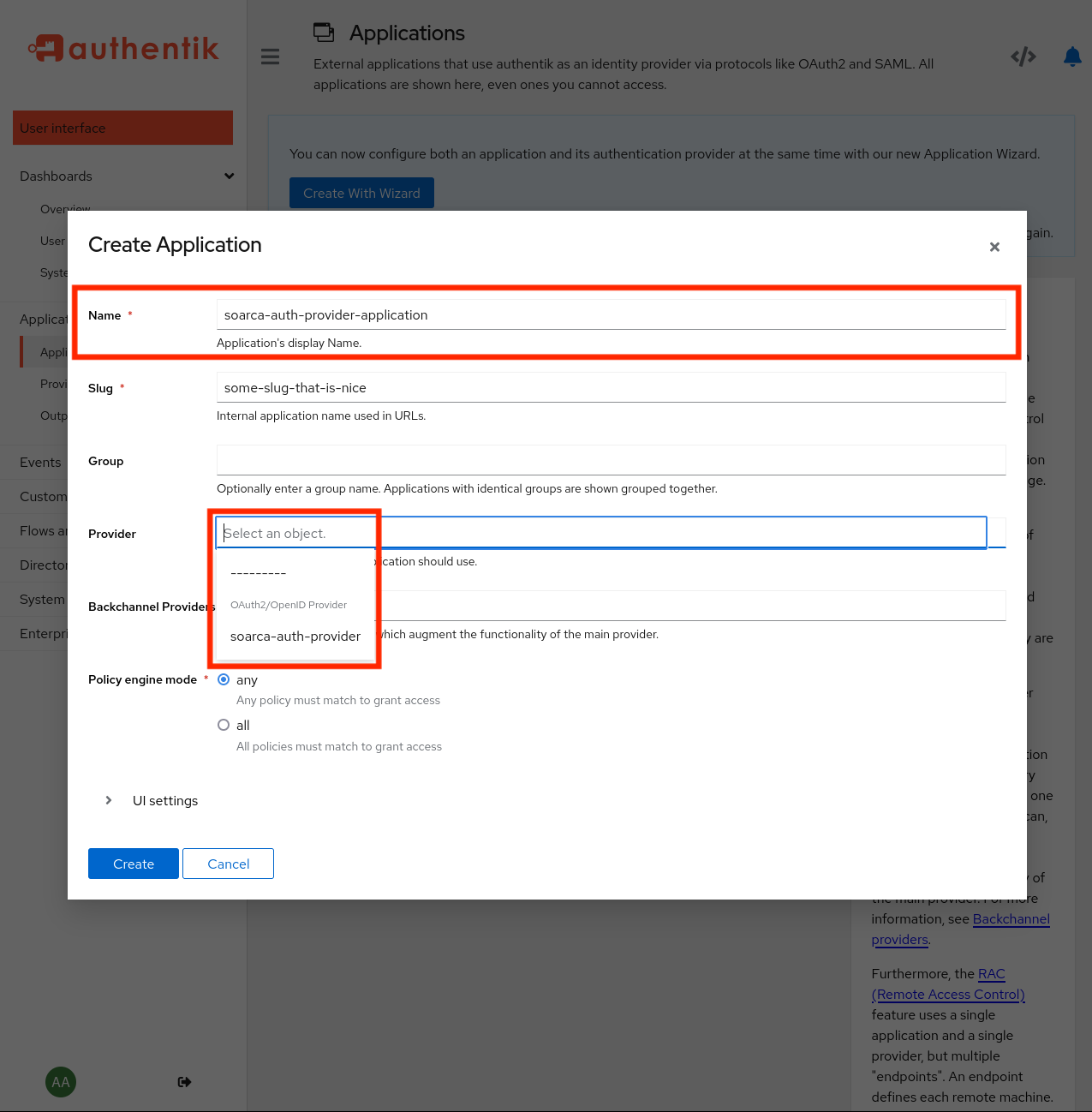
The slug is part of the issuer URL: https://<authentik host>/application/o/<slug>/.
3. Create groups and accounts
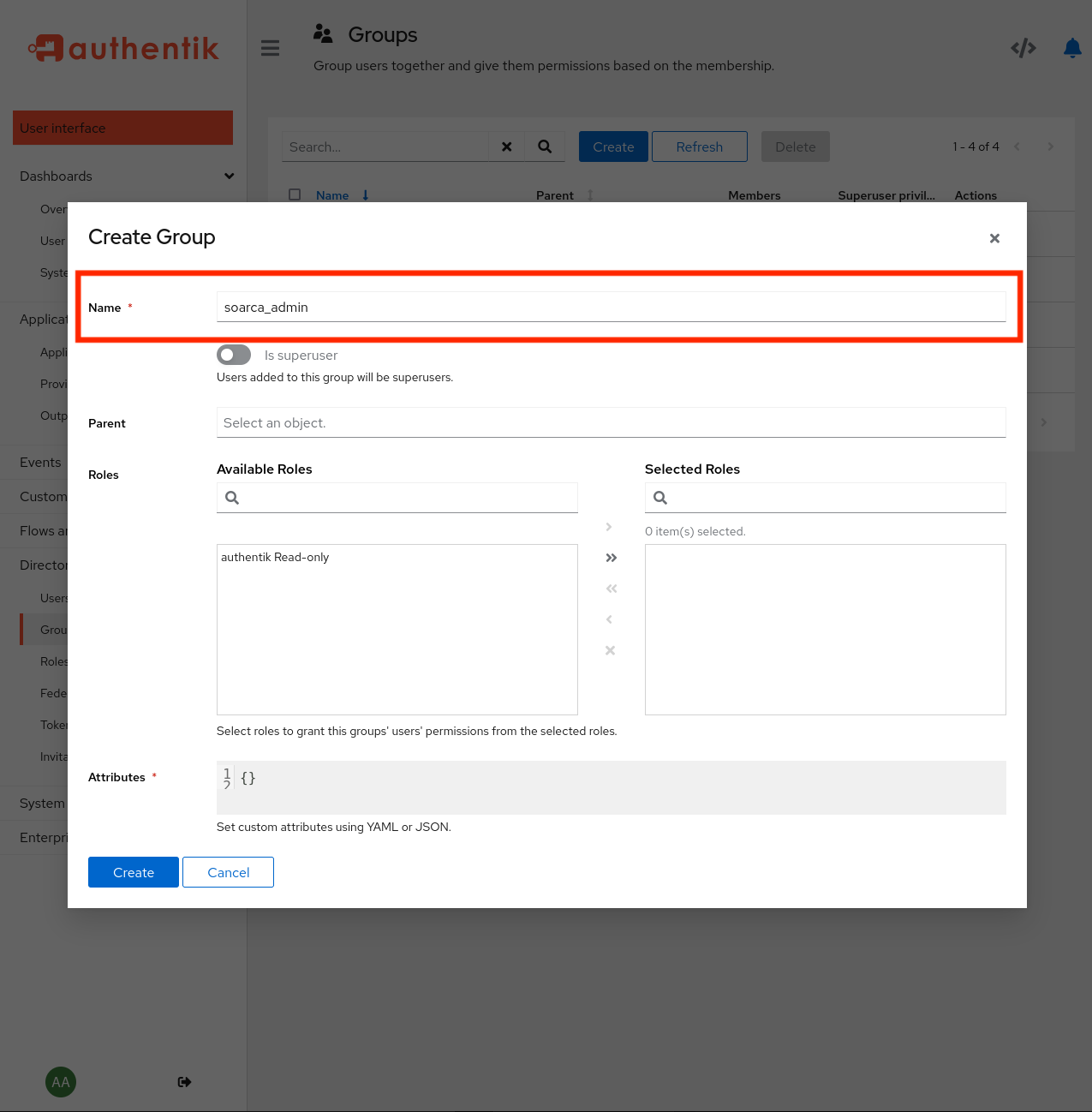
Under Directory → Groups, create the groups from the table above that you need.
Under Directory → Users, add people as normal users and put them in the right groups.
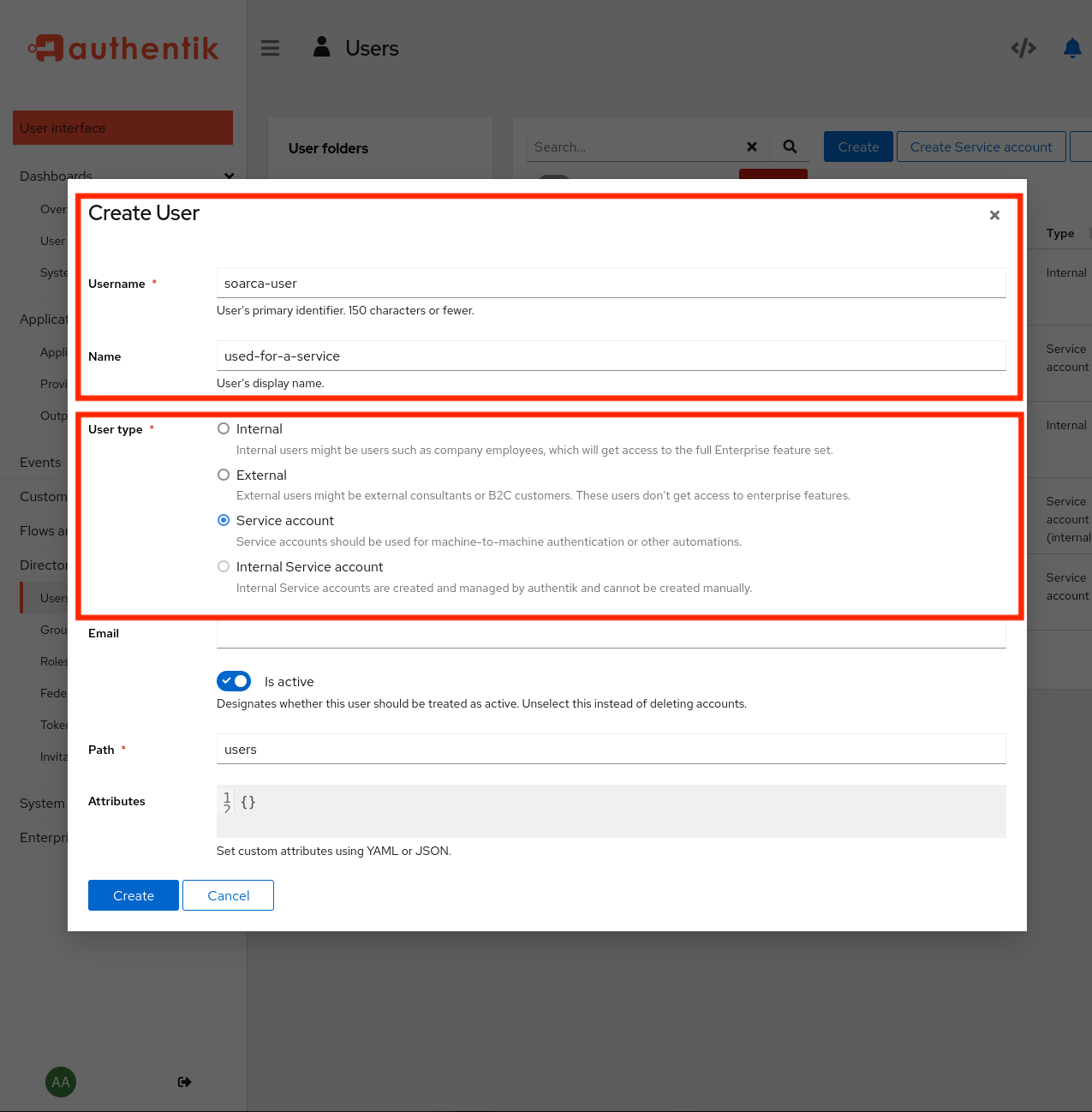
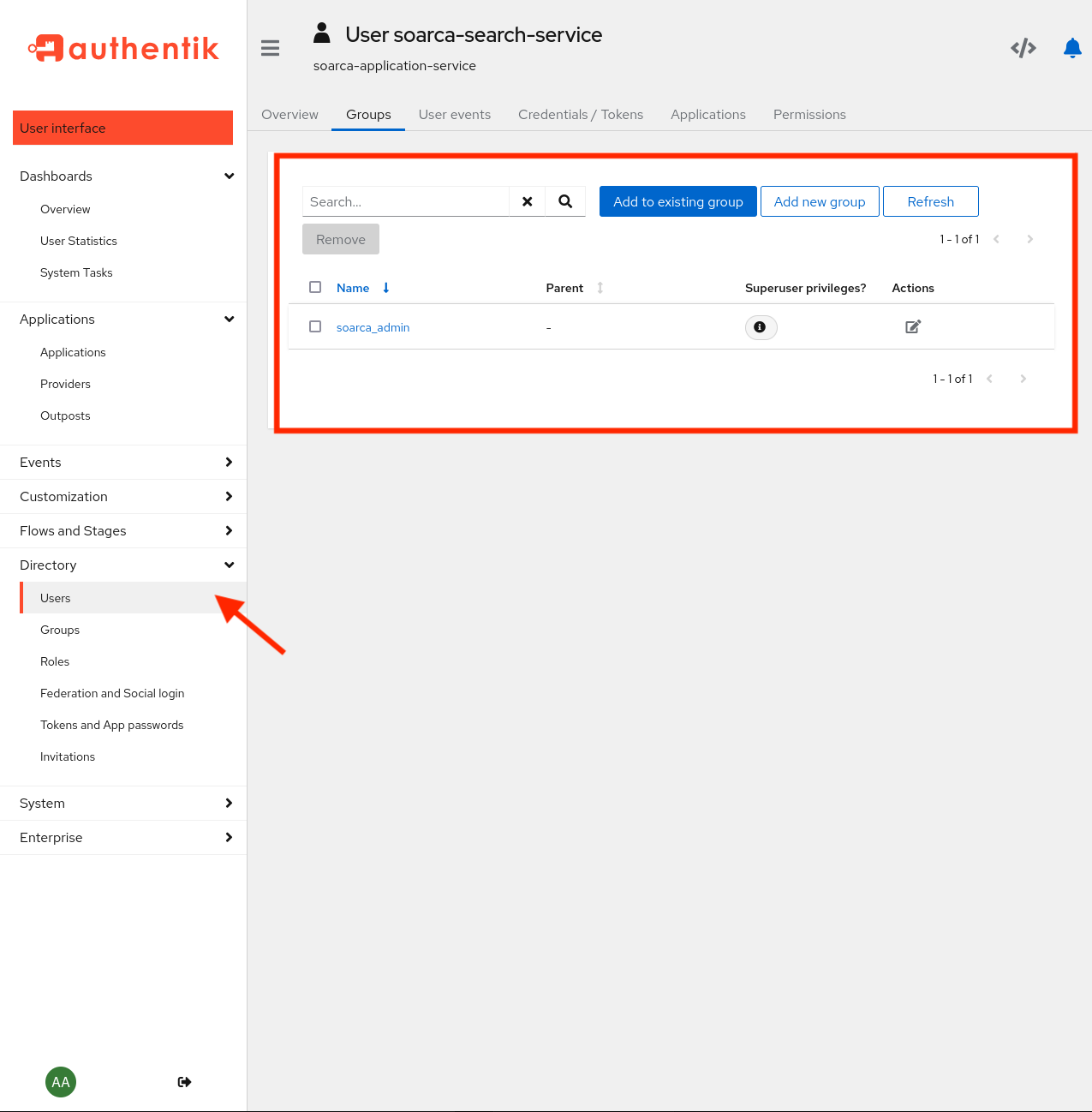
For machine-to-machine access, create a service account for each integration and add it to the group it needs, e.g. soarca_execute. Then create an app password for it under Directory → Tokens and App passwords. The integration uses the account’s username and this app password to request tokens.
If the application has policy bindings that restrict access, bind the SOARCA groups to it as well, otherwise token requests fail.
4. Configure SOARCA
AUTH_ENABLED: true
OIDC_ISSUER: "https://authentik.example.com/application/o/soarca/"
OIDC_CLIENT_ID: "<client ID of the provider>"
OIDC_SKIP_TLS_VERIFY: false
AUTH_GROUP: "soarca_admin"
export AUTH_ENABLED=true
export OIDC_ISSUER="https://authentik.example.com/application/o/soarca/"
export OIDC_CLIENT_ID="<client ID of the provider>"
export OIDC_SKIP_TLS_VERIFY=false
export AUTH_GROUP="soarca_admin"OIDC_ISSUER must match the iss claim of the tokens exactly, including the scheme, the port and the trailing slash. authentik builds the issuer from the host name it’s called on, so SOARCA and the clients requesting tokens must use the same URL for authentik.
SOARCA contacts authentik on the first request that needs it, not at startup, so it can start before authentik is reachable. If authentik is down, requests fail with 401 until it’s back.
Warning
OIDC_SKIP_TLS_VERIFY: true disables certificate checks towards authentik. Use it only in test setups with self-signed certificates.5. Get a token
Users get their token by signing in to SOARCA-GUI. For a service account, use the client credentials grant with the account’s username and app password:
TOKEN=$(curl -s https://authentik.example.com/application/o/token/ \
  -d grant_type=client_credentials \
  -d client_id=<client ID> \
  -d username=<service account> \
  --data-urlencode password=<app password> \
  -d "scope=openid profile email" | jq -r .access_token)

curl -X POST -H "Authorization: Bearer $TOKEN" -H "Content-Type: application/json" \
  -d @playbook.json http://localhost:8080/trigger/playbook
Without profile in the scope, the token carries no groups and SOARCA answers 403.
Other OIDC providers
SOARCA works with any provider whose access tokens:
- are JWTs signed with a key published in the provider’s JWKS (the discovery document’s
jwks_uri), not with the client secret; - carry an
issclaim equal toOIDC_ISSUER, with a discovery document at<OIDC_ISSUER>/.well-known/openid-configuration; - carry the client ID from
OIDC_CLIENT_IDin theiraudclaim; - list the caller’s group names in a
groupsclaim.
In Keycloak, for example, add a Group Membership mapper named groups (with Full group path off) and an Audience mapper for the SOARCA client to the client’s dedicated scope.
Troubleshooting
Decode the token as described in Checking a token.
| Symptom | Cause | Fix |
|---|---|---|
401, and iss differs from OIDC_ISSUER | The token was requested via another host name, scheme or port | Request tokens via the same URL that OIDC_ISSUER uses. Check the trailing slash. |
401, and the token header says "alg": "HS256" | No signing key on the provider | Select a signing key on the provider and request a new token. |
401, and aud differs from OIDC_CLIENT_ID | The token was issued for another provider | Use the client ID of the SOARCA provider. |
403, and the token has no groups claim | profile wasn’t requested, or the scope mapping is missing | Request openid profile email, and check the provider’s scopes. |
403 with groups present | None of the groups grants the permission | Add the account to a group from the table above, or check AUTH_GROUP. |
invalid_grant from authentik | Wrong username or app password, or client credentials aren’t enabled | Check the app password and the provider’s grant types. |
Feedback
Was this page helpful?
Glad to hear it! Please tell us how we can improve.
Sorry to hear that. Please tell us how we can improve.